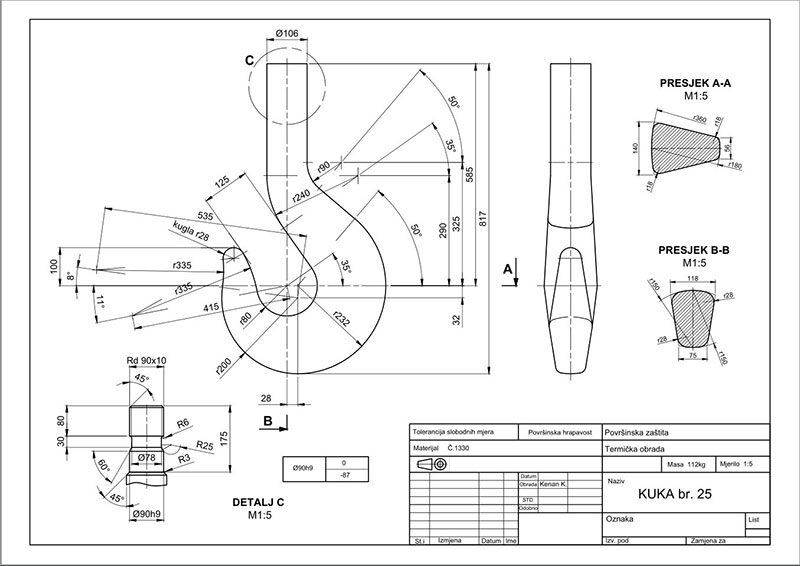
CAD Drawing Made Easy: How to Build Detailed Technical Plans
In today’s fast-moving engineering and construction
landscape, accuracy is everything. Whether you’re designing a residential floor
plan, an industrial component, an MEP layout, or a full architectural package,
CAD software is the backbone of modern drafting. But creating clean, detailed,
and professional technical drawings requires more than learning the software —
it demands a workflow that blends precision, clarity, and industry-standard
practices.At SynnopTech CAD
Solutions, we help businesses, contractors, engineering firms, architects,
and manufacturers transform concepts into fully detailed technical drawings
ready for permitting, fabrication, or client approval. This guide breaks down
the process of creating high-quality CAD drawings in a simple way, while also
showing how expert CAD
services can elevate your project.Why Detailed
Technical Drawings MatterAccurate drawings
ensure:Fewer site errorsSmooth fabricationBetter communication with contractors and
clientsFaster approvalsCost savings by eliminating reworkA well-created CAD drawing
becomes the foundation for every decision made during the project lifecycle. 1. Start With a Clear
Project BriefBefore opening your CAD software, define:Project scopeMeasurements and site conditionsRequired drawing standardsExpected deliverables (2D plans, sections,
elevations, 3D models, etc.)Codes or guidelines your industry follows A precise brief
ensures you begin with the right information — and reduces changes later.Tip: Many companies send rough sketches, PDFs, markups, or
photos. At SynnopTech CAD, we convert these into clean, professional CAD files.2. Set Up Your CAD
WorkspaceA structured workspace improves consistency across drawings.Key steps include:Setting drawing units (metric/imperial)Organizing layers (walls, doors, dimensions,
centerlines, text, electrical, plumbing, etc.)Defining line weights and line typesApplying annotation styles for dimensions,
leaders, and textCreating blocks for repetitive componentsA properly set-up template can save hours in
drafting.3. Begin with Base
GeometryStart with the foundational elements of your drawing:Site boundariesReference pointsGrids or center linesRough outlines of structural
or architectural elementsThis forms the skeleton of your project. Accuracy here
ensures the rest of the drawing aligns perfectly.4. Add Details and
Technical ComponentsAfter the base geometry, add the details required for
clarity and construction:Architectural DrawingsWalls, doors, windowsFurniture or space planningSections and elevationsMEP DrawingsElectrical layoutsPlumbing linesHVAC routingEngineering DrawingsPart geometryDimensions and tolerancesMaterial specificationsAssembly instructionsClear detailing helps technicians, installers, and builders
understand exactly what is required.5. Apply Dimensions
and AnnotationsDimensions must be:ConsistentAccurateEasy to readBased on project standardsAdd notes, symbols, legends, and revision tables to guide
stakeholders.Well-annotated drawings eliminate confusion and speed up
approvals.6. Review,
Cross-Check & CorrectTechnical drawings must go through a rigorous
checking-stage:Verify dimensionsEnsure layering accuracyCheck for missing elementsCompare with reference sketchesValidate compliance with standardsThis step is crucial — even a small oversight can cause
costly field issues.Professional CAD teams like SynnopTech perform multi-level
QC checks to ensure every drawing is ready for submission. 7. Export &
Deliver in the Required FormatDepending on the project, CAD drawings may need to be
delivered in:DWGDXFPDFBIM-compatible formats (Revit, IFC) Organize output into clear sheet sets with proper titles,
scales, and layouts.Why Partner With a
Professional CAD Team?While CAD software makes drafting easier, producing
high-quality technical
drawings that meet industry standards requires experience and
precision.Working with
SynnopTech CAD gives you:Expert drafters and engineersFast turnaround timesAccurate, error-free drawingsSupport for drawings, redlines, markups,
revisions, and bid packagesScalable drafting support during busy seasonsCost-effective solutions compared to in-house
teamsWhether you need a single drawing or a full project set, we
ensure every file is professionally produced and ready for immediate use.Industries We ServeArchitectureCivil & structural engineeringMechanical & manufacturingElectrical & plumbingContractors & buildersInterior designersIndustrial and fabrication companiesOur versatile CAD team supports projects of all sizes and
complexities.Final ThoughtsCreating detailed technical drawings doesn’t have to be
complex. With a structured workflow — and the right CAD expertise — even the
most challenging plans become clear, accurate, and easy to execute.If your business needs support with drawings, revisions, markups, redlines, BIM conversion, or full drafting packages, SynnopTech CAD Solutions is here to help you deliver quality with confidence.
𝐂𝐥𝐢𝐜𝐤 𝐡𝐞𝐫𝐞 𝐭𝐨 𝐫𝐞𝐚𝐝 𝐭𝐡𝐞 𝐟𝐮𝐥𝐥 𝐛𝐥𝐨𝐠 𝐚𝐧𝐝 𝐞𝐧𝐡𝐚𝐧𝐜𝐞 𝐲𝐨𝐮𝐫 𝐂𝐀𝐃 𝐝𝐫𝐚𝐟𝐭𝐢𝐧𝐠 𝐬𝐤𝐢𝐥𝐥𝐬 𝐭𝐨𝐝𝐚𝐲:https://www.synnoptechcad.com/blog/how-to-create-detailed-technical-drawings-using-cad-software/